 FlowKeys
How to type on a Mac without a keyboard
If a physical keyboard is hard or impossible for you to use, a Mac can still be typed on all day. You need two things: a way to move the pointer, and a keyboard on the screen to point at. Dictation fills in the rest.
The short answer
- Pick how you'll point. A mouse, trackball, touchpad, joystick, head pointer or eye tracker. Anything that moves the Mac pointer works.
- Put a keyboard on the screen. macOS has one built in (the Accessibility Keyboard), or you can install an on-screen keyboard like FlowKeys.
- Decide how you'll click. Click normally, use dwell clicking (rest the pointer to click), or use one switch with scan mode.
- Add dictation for longer text, so you only type the parts that need precision.
Step 1: Choose how you'll move the pointer
Everything else builds on this, so choose what's most comfortable to hold for hours, not minutes.
- Mouse, trackball or touchpad. A trackball is often easier than a mouse if moving your arm is tiring, because only your fingers or palm move.
- Joystick or mouth-operated mouse. Any of these that the Mac sees as a pointing device works with an on-screen keyboard.
- Head pointer. macOS can follow your head with the built-in camera. Turn it on in System Settings > Accessibility > Pointer Control (on newer versions of macOS it sits under Motor), then turn on Head pointer.
- Eye tracker. A dedicated eye tracker that moves the Mac pointer works the same way as a head pointer.
Step 2: Put a keyboard on the screen
An on-screen keyboard is a floating window of keys. Click a key and the letter goes into whatever app you're typing in, exactly as if you'd pressed it on a real keyboard.
Option A: Apple's Accessibility Keyboard (free, built in)
Go to System Settings > Accessibility > Keyboard and turn on Accessibility Keyboard. It has typing suggestions, dwell, and a Panel Editor for building custom panels. It's also the only on-screen keyboard that can appear on the Mac's login window, so it's worth knowing how to turn on even if you use something else day to day.
Option B: FlowKeys
FlowKeys is an on-screen keyboard for Mac built around saving presses. It puts nine word suggestions in one row that learn the words you use, a Dictate button, and one-tap rewrites in the same floating keyboard.
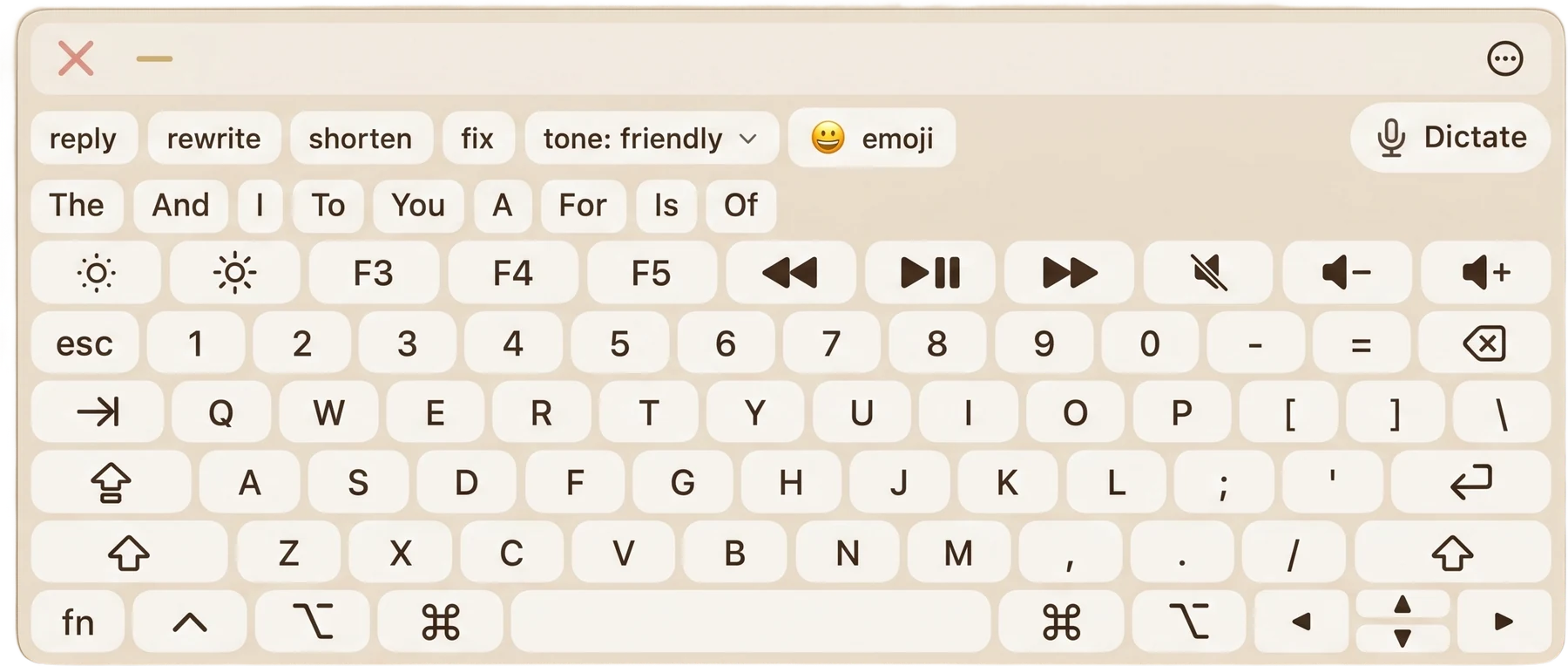
To set it up:
- Download FlowKeys, open the file, and drag FlowKeys into Applications.
- Open it and sign in with your email.
- When macOS asks, allow FlowKeys in Accessibility. It needs this to type into other apps.
- Click into any text field and start clicking keys.
For a fuller side-by-side, see FlowKeys and Apple's Accessibility Keyboard.
Step 3: Decide how you'll click
Pointing at a key is half the job. You also need a way to press it.
- Click normally if you can press a mouse or trackball button comfortably.
- Dwell clicking. Rest the pointer on a key for a moment and it presses. This is how most head pointer and eye tracker users type. See the dwell clicking guide.
- One switch with scan mode. The keyboard highlights one row at a time, then one key at a time, and you press a single switch, key or mouse button to choose. In FlowKeys, turn it on in Settings > Accessibility > Scan mode and set how fast it steps.
Step 4: Type less with prediction and dictation
Every press costs effort, so the biggest win is pressing less.
- Word prediction. Pick a whole word from the suggestion row instead of spelling it out. In FlowKeys, nearly 4 in 10 words show up before you type a single letter, and over half your keystrokes are saved. That was measured on 500 everyday messages FlowKeys had never seen, with the full suggestion row.
- Dictation. For anything longer than a sentence, talking is faster than any keyboard. FlowKeys has a Dictate button on the keyboard itself: tap it, talk, and punctuated text lands in your field with filler words taken out.
- Saved text. Your address, email sign-off or a phrase you type every day can live one tap away. FlowKeys calls these Inserts.
Common questions
Can I type on a Mac with only a mouse?
Yes. Turn on an on-screen keyboard (Apple's Accessibility Keyboard or FlowKeys) and click the keys with the mouse. Word prediction and dictation cut down how many clicks each message takes.
Can I log in to my Mac without a keyboard?
Third-party keyboards can't appear on the login window, because macOS doesn't allow any app there. Use Touch ID, an Apple Watch, or Apple's Accessibility Keyboard, which you can turn on from the login window's accessibility options.
Does an on-screen keyboard work in every app?
FlowKeys types into any app with a text field: mail, browsers, Messages and documents. In password fields it still types, but predictions and learning switch off so your passwords are never saved.