 FlowKeys
Dwell clicking on Mac: how to set it up
Dwell clicking lets you click without pressing anything. You rest the pointer on something, a short countdown runs, and it clicks. It's how most people who use a head pointer or eye tracker type and click on a Mac.
How dwell works
Move the pointer onto a key or button and hold it still. A small indicator fills up. When it's full, the click happens. Move away before then and nothing happens.
Two settings decide whether dwell feels right:
- Dwell time: how long you hold still before it clicks. Too short and you'll click things you only passed over. Too long and typing feels slow.
- Movement tolerance: how much the pointer can wobble before the countdown starts over. Head pointers and eye trackers always wobble a little, so this matters as much as the time.
Option A: Dwell in macOS
macOS has dwell built into its Accessibility Keyboard.
- Open System Settings > Accessibility > Keyboard and turn on Accessibility Keyboard.
- Click the Info button next to it and turn on Dwell.
- Pick the action dwell performs: left click, double click, right click, drag and drop, scroll, or the options menu.
If you'll be pointing with your head, turn on the head pointer first in System Settings > Accessibility > Pointer Control (under Motor on newer versions of macOS).
Option B: Dwell in FlowKeys
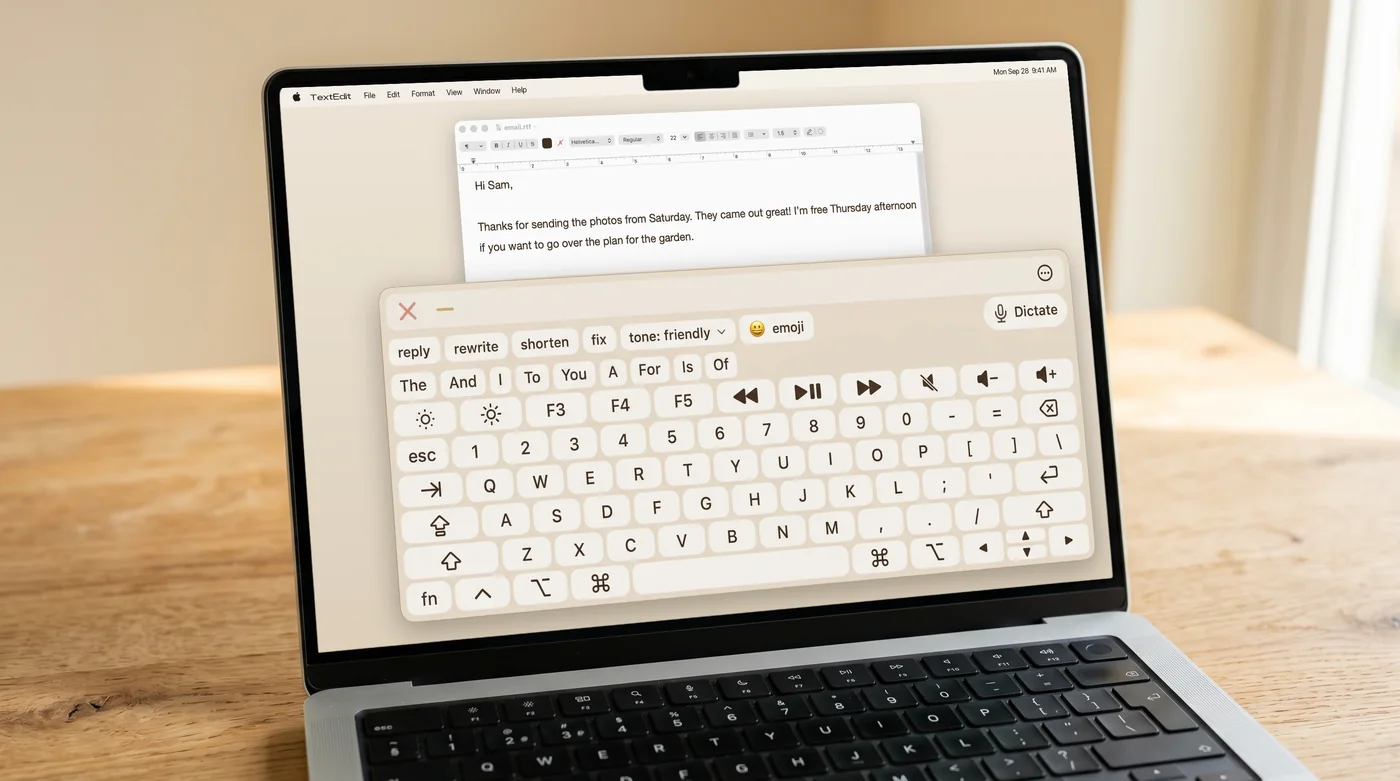
FlowKeys has its own dwell, built for typing all day. Open FlowKeys Settings, go to Accessibility, and turn on Dwell. Then pick where it works:
| Scope | What dwell clicks | Good for |
|---|---|---|
| Keys | Every key, including Shift and the arrows | Typing with dwell, clicking everything else yourself |
| Panel | The whole keyboard, the word suggestions and emoji | Typing entirely by dwell |
| Screen | The keyboard plus anywhere on screen | Using the whole Mac without clicking |
In Screen scope you choose a default action for the rest of the screen: left click, double click, right click, drag and drop, scroll, or the options menu. Auto revert to left click switches back to a normal click after you've used a one-off action, so a single right click doesn't leave you right-clicking everything.
Tune it
- Panel dwell time and Screen dwell time are separate, so keys can be quick while clicks elsewhere on screen stay deliberate.
- Movement tolerance (under Advanced dwell) sets how far the pointer can drift before the countdown restarts. Raise it if dwell keeps restarting on a head pointer.
- Post-action tolerance sets how far you must move after a click before the next countdown starts. Raise it if you get double letters.
Dwell corners
Each corner of the screen can hold one action you reach by dwelling there: hide or show the keyboard, pause dwell, or switch to right click, double click, drag and drop, scroll or the options menu. Pausing from a corner is handy when you want to read or watch something without clicking by accident.
Tips from daily dwell users
- Start with a longer dwell time than you think you need, then shorten it a little each day.
- Make the keyboard bigger. Larger keys mean less precise pointing, which means fewer wrong letters.
- Lean on word suggestions. With dwell, every letter costs a pause, so picking a whole word from the suggestion row saves the most time.
Common questions
What is dwell clicking on a Mac?
Dwell clicking clicks for you when you hold the pointer still for a set time. macOS includes it with the Accessibility Keyboard, and FlowKeys has its own dwell with separate timing for keys and the rest of the screen.
Can I right click or drag with dwell?
Yes. Both macOS dwell and FlowKeys dwell can right click, double click, drag and drop, and scroll. In FlowKeys you can also put these on screen corners.
Why does dwell keep clicking by accident?
Your dwell time is probably too short, or post-action tolerance too low. Lengthen the dwell time a little, and use a pause (a dwell corner works well) when you're reading.