 FlowKeys
Typing on a Mac with cerebral palsy
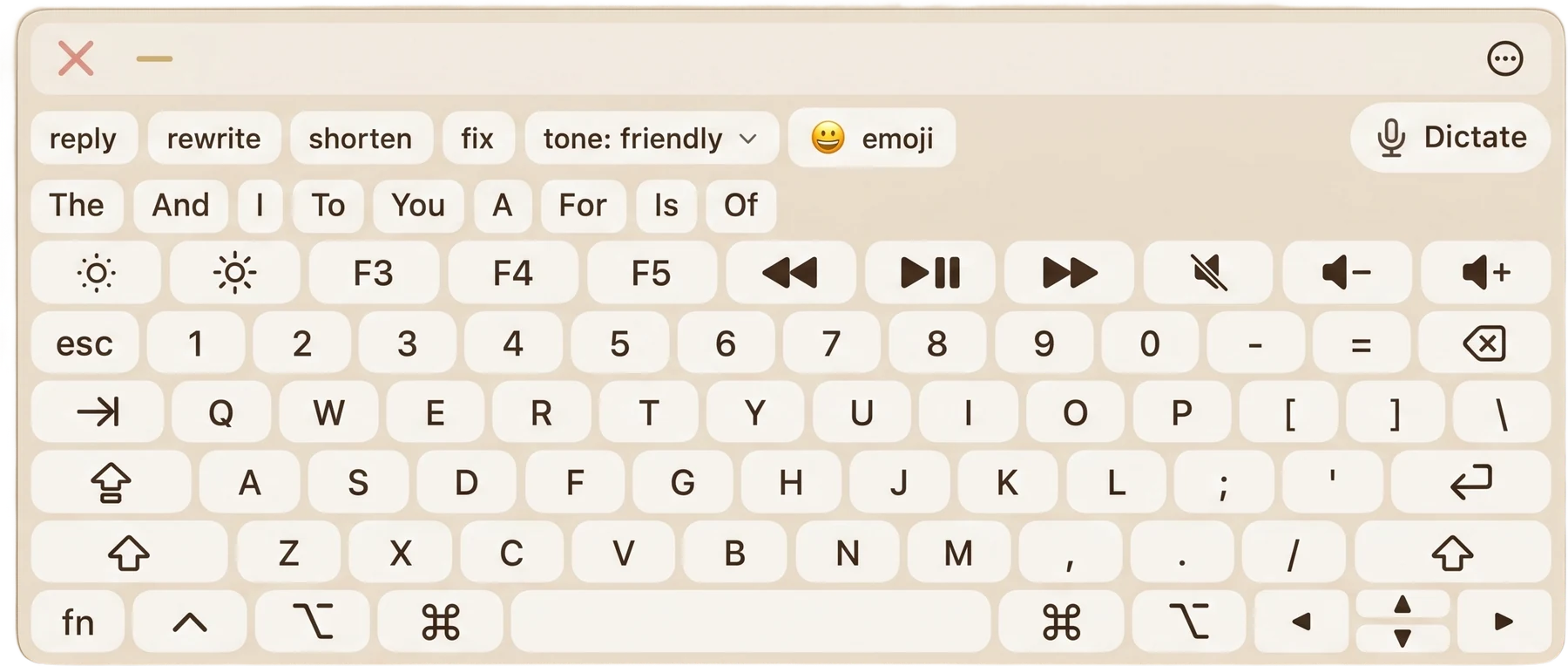
When your movements don't always land where you aim, a physical keyboard means a lot of wrong letters and a lot of fixing. An on-screen keyboard you can tune to how you move makes typing calmer. FlowKeys lets you set how forgiving it is, then does more of the typing for you.
Settings that forgive extra movement
These are the FlowKeys settings that matter most when your pointer doesn't always stay still:
- Bigger keys. Resize the keyboard and scale the letters so every key is an easier target.
- Longer dwell time. If you click by dwell, a slightly longer countdown means passing over a key doesn't press it.
- Movement tolerance. How far the pointer may drift while you're dwelling before the countdown restarts. Raise it if small movements keep resetting it.
- Post-action tolerance. How far you have to move after a press before the next one can start. Raise it to stop double letters.
- Separate timing for keys and screen. Keys can respond quickly while clicks elsewhere on screen stay deliberate.
Scan mode: type with one button
If pointing is hard but you can press one thing reliably, scan mode does the pointing for you. FlowKeys highlights one row at a time, you press to pick the row, then it steps through that row's keys and you press again. Use a switch, a single key or a mouse button, and set how fast it steps (from under half a second to two and a half seconds).
Type fewer letters
- Nine word suggestions in one row, learning the words you use. Nearly 4 in 10 words show up before you type a letter, so fewer presses means fewer chances to miss.
- Fix in a tap. The fix action corrects spelling and grammar across a whole message, so you don't have to go back and hunt for each one.
- Dictation if speaking works for you. Tap Dictate, talk, and punctuated text appears in your field.
Common questions
What is the best way to type on a Mac with cerebral palsy?
It depends on how you move. Many people use an on-screen keyboard with large keys and word prediction, and tune dwell or scan settings to forgive extra movement. Try a few setups; the typing without a keyboard guide covers them.
Can I stop an on-screen keyboard from pressing keys twice?
Yes. In FlowKeys, raise post-action tolerance so you have to move further after a press before another can start, and lengthen the dwell time a little.