 FlowKeys
FlowKeys and Apple's Accessibility Keyboard
Every Mac comes with a free on-screen keyboard, the Accessibility Keyboard. It's good, and for some people it's all they need. FlowKeys is for people who type on screen all day and want to press less. Here's an honest look at both.
At a glance
| Apple Accessibility Keyboard | FlowKeys | |
|---|---|---|
| Price | Free, built into macOS | Free plan; Pro and Lifetime add unlimited dictation and more rewrites |
| Word suggestions | Yes, typing suggestions above the keys | Nine suggestions in one row that learn the words you use |
| Dictation | Use macOS dictation separately | Dictate button on the keyboard; punctuated text with filler words removed |
| Rewrite text | No | Reply, rewrite, shorten, fix or change the tone in one tap |
| Dwell clicking | Yes | Yes, with separate key and screen timing and dwell corners |
| One-switch scanning | Through macOS Switch Control | Scan mode on the keyboard, with one key, switch or mouse button |
| Custom panels | Yes, with the Panel Editor | No custom panels; themes, layouts, sizing and saved text (Inserts) |
| Login window | Yes | No. macOS doesn't let any app appear there |
| Internet | Not needed | Dictation and rewrites need a connection |
What Apple's keyboard does well
- It's already on your Mac. Turn it on in System Settings > Accessibility > Keyboard. Nothing to install, no account.
- It works at the login window. No third-party keyboard can do this. Even if you use FlowKeys every day, keep Apple's keyboard turned on for logging in.
- The Panel Editor. You can build your own panels of buttons and shortcuts for specific apps.
- Dwell is built in, with left click, double click, right click, drag and drop, scroll and an options menu.
What FlowKeys adds
A bigger row of suggestions that learns you
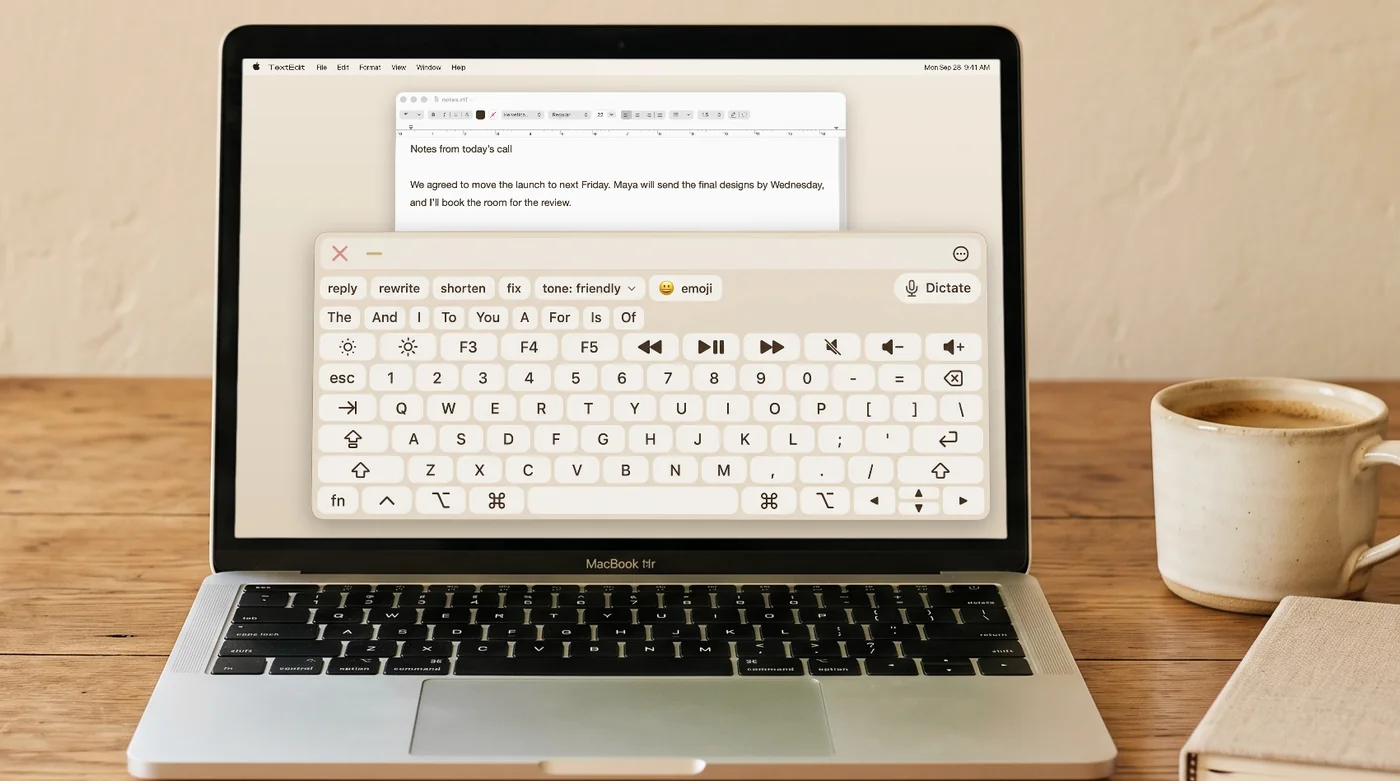
FlowKeys shows nine word suggestions in one row and learns the words you actually use, including names and words a dictionary doesn't know. Nearly 4 in 10 words show up before you type a letter, and over half your keystrokes are saved, measured on 500 everyday messages FlowKeys had never seen. Your predictions and learned words stay on your Mac.
Dictation on the keyboard
Tap Dictate, talk, and the text lands in your field with punctuation and without the ums. For anything longer than a sentence it's the fastest way to write, and you never leave the keyboard to start it.
Fix text without retyping
Reply, rewrite, shorten, fix or change the tone of what you wrote in one tap. When every letter costs effort, not having to retype a sentence matters.
Dwell and scanning tuned for all-day typing
Separate dwell times for keys and for the rest of the screen, movement tolerance for head pointers, and four screen corners you can dwell on for actions like pause or right click. Scan mode steps through rows, then keys, and you choose with a single switch, key or mouse button. More in the dwell clicking guide.
Which should you use?
- Use Apple's keyboard if you type on screen now and then, need custom button panels, or can't use an internet connection.
- Try FlowKeys if you type on screen for hours, want bigger word suggestions, or want dictation and rewrites in the same keyboard.
- Use both if you rely on an on-screen keyboard: Apple's for the login window, FlowKeys for everything after.
Common questions
Is there a better alternative to the Mac Accessibility Keyboard?
It depends on how much you type. Apple's Accessibility Keyboard is free and works at the login window. FlowKeys adds nine learning word suggestions, dictation and one-tap rewrites in one floating keyboard, for people who type on screen all day.
Can I use FlowKeys and the Accessibility Keyboard together?
Yes. Many people keep Apple's keyboard for the login window and use FlowKeys once they're logged in.
Is FlowKeys free?
FlowKeys has a free plan with the full keyboard, word predictions, 2,000 words of dictation a week and 10 rewrites a day. New accounts get 7 days of Pro free, no card needed.